Google AI Image Generator: Complete Guide for 2026
Last updated: June 05, 2026 Google AI Image Generator: Complete Guide for 2026 The visual world moves fast, and in 2026, artificial intelligence is no longer just enhancing creative tools; it's…
Last updated: June 05, 2026
The visual world moves fast, and in 2026, artificial intelligence is no longer just enhancing creative tools; it’s redefining them. With incredible advancements over the past year, the google ai image generator has solidified its position as a powerhouse for anyone looking to transform text into stunning visuals. From marketers needing rapid ad creatives to artists exploring new mediums and everyday users just wanting to visualize a wild idea, this technology has become indispensable. Its capabilities have evolved dramatically, making it easier than ever to bring complex concepts to life with unprecedented detail and speed.
In this guide, this guide covers everything you need to know about Google’s AI image generation capabilities in 2026. This guide covers the cutting-edge technology powering it, highlights the key features that stand out, and offer practical advice for mastering advanced prompting. You’ll also learn about the ethical considerations Google has built-in and, of course, how to get started creating your own captivating images. By the end of this article, you should be ready to leverage this powerful tool to its fullest potential.
What’s Under the Hood: The Gemini-Powered Google AI Image Generator in 2026
When this guide refers to the Google AI Image Generator in 2026, the focus is the visual output capabilities integrated within the Gemini ecosystem. Since the significant Gemini 2.5 update in late 2025, which folded in advanced components from Google’s DeepMind research, the generator has seen a monumental leap in its understanding of context, nuance, and artistic styles. It’s not just stitching together pixels; it’s interpreting complex prompts with a level of sophistication that was merely theoretical just a couple of years ago. The underlying architecture is a highly optimized diffusion model, trained on an unfathomably vast dataset of images and their corresponding textual descriptions.
This deep integration means the generator isn’t a standalone product; it’s a feature you access through Gemini Advanced, Google Search, and increasingly, within Google Workspace applications like Slides and Docs. For instance, prompting for an image within a Google Slides presentation template now yields contextually relevant results almost instantly, anticipating the presentation’s theme and tone. This seamless embedding across Google’s services is a game-changer, making AI image creation a natural part of a workflow rather than a separate chore.
Quick note: The generator’s ability to understand subtle artistic directives, like “in the style of a 19th-century botanical illustration” or “with the stark lighting of a film noir scene,” comes directly from Gemini’s multimodal reasoning. It processes not just the words but the implied artistic knowledge embedded within the prompt, drawing from its extensive training on cultural and artistic movements. This is a significant differentiator, compared to tools that rely more on literal keyword matching.
Pro tip: Google’s vast data pool, continually refreshed and curated, gives its generator an undeniable edge. A standout is generating a wider variety of culturally diverse and niche-specific imagery, a result of its training data. It’s not just about generating beautiful images; it’s about generating relevant and accurate ones.
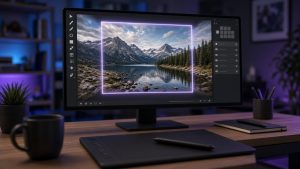
Figure 1: Screenshot of the Google Image Generator interface within Gemini Advanced, showcasing its intuitive prompt bar and style options.
Key features and capabilities in 2026
The Google AI Image Generator in 2026 isn’t just about basic text-to-image; it’s a comprehensive suite of tools that help you create with incredible precision and flexibility. Several key features stand out in daily use.
High-Fidelity Output and Resolution Control
Later updates have also focused on detail at higher resolutions. The generator now consistently produces images up to 4K resolution directly, a massive boon for print media and high-definition digital displays. You can specify target resolutions within your prompt, like “a serene forest landscape, photorealistic, 3840×2160 pixels,” and the system will optimize accordingly. It can be used to generate stunning background visuals for websites and crisp, detailed product mockups.
Diverse Stylistic Control and Blending
One of the most impressive advancements is the generator’s expanded stylistic repertoire and its ability to blend them. You can now prompt for hyperrealistic images, abstract expressionism, volumetric lighting, digital painting, and even specific historical art movements. You can also combine these. Imagine “a cyberpunk cityscape, illuminated by neon, rendered with the texture of oil paint on canvas.” The generator doesn’t just overlay; it synthesizes these styles intelligently. This makes it incredibly versatile for designers and artists pushing creative boundaries.
Advanced Inpainting and Outpainting
The March 2026 update introduced robust inpainting and outpainting capabilities, directly accessible within the generation interface. This means you can select a specific area of an existing generated image and tell the AI to modify or expand it. Need to add a flying saucer to a cityscape? Select the sky and prompt for it. Want to extend a background to fit a wider aspect ratio? The outpainting feature seamlessly fills in the new edges, maintaining visual coherence. This is invaluable for refining outputs without starting from scratch.
Dynamic Subject and Compositional Control
The generator offers a nuanced level of control over subjects, actions, lighting, and camera angles. You can specify “a low-angle shot of a lone astronaut, bathed in warm sunset light, looking at a distant planet,” and the AI understands these complex instructions. You can also use negative prompts like “no people, no bright colors” to refine the output precisely. This granular control means you spend less time regenerating and more time iterating on specific creative visions. It’s truly a tool for directed creativity.
Beyond the Basics: Advanced Prompting and Iteration Strategies
While basic prompts can give you decent results, unlocking the full power of Google’s AI Image Generator requires a more strategic approach. A few methods can yield stronger outcomes.
Structuring Your Prompts for Precision
Think of your prompt as a visual recipe. We recommend breaking it down into key components: subject, action, environment, style, lighting, and mood. The more detail you provide in each category, the more precise the output will be.
- Subject: “A majestic lion,” “a vintage automobile.”
- Action/Pose: “roaring at the camera,” “parked on a cobblestone street.”
- Environment: “in the African savanna at dusk,” “with a Parisian café in the background.”
- Style: “hyperrealistic, National Geographic quality,” “impressionistic painting, soft brushstrokes.”
- Lighting/Atmosphere: “golden hour lighting,” “overcast and moody.”
- Mood/Emotion: “powerful and regal,” “nostalgic and romantic.”
Quick note: Start broad, then add layers of detail. A practical approach is to begin with just a subject and action, then iteratively add style, lighting, and specific elements in subsequent prompts or edits.
Leveraging Negative Prompts and Parameters
Negative prompts are your secret weapon for telling the AI what *not* to include. They can be used to remove unwanted artifacts, styles, or content that might otherwise appear. For instance, if you’re generating a photorealistic image and keep getting a painterly texture, add “, not painting, no brushstrokes” to your negative prompt. You can also specify aspect ratios (e.g., “aspect ratio 16:9”) and even “seed” numbers from previous successful generations to create variations of a particular image without losing its core characteristics.
Google’s Iteration and Refinement Tools
Google’s interface, particularly within Gemini Advanced, offers powerful refinement tools. The “Vary Region” feature is fantastic; you can highlight a specific part of your generated image – say, a person’s outfit or a building’s architecture – and prompt the AI to change *only* that area. “Upscale” can be invaluable for increasing resolution and detail post-generation, and “Remix” allows you to take an existing image and apply a completely new style or concept to it while retaining some of the original’s composition. It’s a non-destructive way to experiment without losing your initial work.
Here’s the thing: Don’t be afraid to experiment. A common approach is to generate several iterations of an image, using slight prompt adjustments, before landing on a strong one. It’s an iterative process, and Google’s tools are built to support that.
Ethical AI and Safety Features: Google’s Stance
Google has been at the forefront of responsible AI development, and their AI Image Generator reflects a robust commitment to safety and ethics. This is a critical aspect that can differentiate it from some competitors.
Content Moderation and Guardrails
The generator incorporates sophisticated content filters designed to prevent the creation of harmful, illegal, or inappropriate images. This includes preventing the generation of explicit content, hate speech, violent imagery, and misinformation. These guardrails can be quite effective, though occasionally they can be overly broad, blocking seemingly innocuous prompts that might inadvertently trigger a keyword. However, it’s a necessary trade-off for responsible deployment.
Digital Watermarking and Metadata
All images generated by Google’s AI come with an invisible digital watermark and embedded metadata, often referred to as “SynthID.” This allows for the provenance of the image to be traced back to its AI origin. This is a crucial step in combating deepfakes and ensuring transparency in an increasingly AI-generated world. It helps people and the audience discern between human-created and AI-generated content, fostering trust and accountability.
Bias Mitigation
Google invests heavily in identifying and mitigating biases in its AI models. While no system is perfect, continuous efforts are made to ensure the generator produces diverse and representative imagery across various demographics and contexts. This means when you prompt for “a group of business professionals,” you see a wider range of ethnicities, genders, and ages, reflecting the real world more accurately. This commitment to diversity is essential for creating truly useful and inclusive tools.
Pro tip: Understanding these guardrails helps you prompt effectively without hitting content filters. If a prompt is rejected, rephrase it to avoid potentially sensitive keywords, even if your intent was harmless. Google describes safety systems aimed at preventing the generation of prohibited content, a hard problem at the scale of its operation.
Getting Started: Your First Image with Google AI
Ready to create your first AI-generated image? This guide covers the simple steps to get started, primarily using the Gemini Advanced interface as an example, as it offers the most comprehensive set of features.
-
Access the Generator: First, ensure you have access to Gemini Advanced. You can typically find the image generation feature directly within the Gemini chat interface. Look for an option that says “Generate Image” or simply start typing a prompt that clearly indicates image creation (e.g., “create an image of.”, “show me a picture of.”). Google is making this increasingly intuitive, so just asking for an image will often trigger the generator.
-
Craft Your Initial Prompt: In the text input field, describe the image you want to create. Start with something straightforward. For example: “A fluffy cat wearing sunglasses, sitting on a skateboard, in a park during autumn.” Be descriptive but don’t overthink it initially.
-
Review and Refine: The AI will process your prompt and typically generate 2-4 variations of the image. Take a moment to review them. Do any of them come close to your vision? If not, modify your prompt. You can add more detail (e.g., “make the cat orange,” “add falling leaves”), specify a style (e.g., “cartoon style,” “photorealistic”), or use negative prompts (e.g., “no people in the background”). The interface usually provides options to “Generate More,” “Refine,” or “Vary.”
-
Download and Use: Once you have an image you like, you’ll see options to download it. Most images will download as high-resolution JPG or PNG files. Remember that these images will carry the invisible SynthID watermark. You can then use your newly created image for presentations, social media, personal projects, or whatever creative endeavor you have in mind!
Figure 2: A step-by-step visual guide to generating your first image, from prompt input to final download options.
Common Pitfalls and Limitations
While the Google AI Image Generator is incredibly powerful, it’s not without its quirks. A few common issues come up often, and we recommend watching out for the following.
One frequent mistake is **over-prompting**. Users sometimes write paragraphs of descriptive text in a single prompt. While detail is good, too much can confuse the AI, leading to a cluttered or nonsensical image. We recommend concise, structured prompts and using iterative refinement instead.
Another challenge is **hitting safety filters unexpectedly**. Even with innocent intent, certain keyword combinations can trigger Google’s content moderation. If your prompt is rejected, try rephrasing with synonyms or breaking down complex ideas into simpler components. It’s a learning curve to understand the system’s sensitivities.
You’ll also occasionally encounter **”AI weirdness” or artifacts**. Sometimes, hands might have too many fingers, or objects might blend unnaturally. While Google has made huge strides, especially since the early 2026 updates, these occasional glitches still pop up. This is often resolved by regenerating or using the “Vary Region” tool to fix specific anomalies.
Lastly, while it’s fantastic, it doesn’t always offer the same granular, pixel-level control an artist might get from traditional software. For highly specific artistic visions, it’s a powerful starting point, but you might still need to bring it into an editor for final touches.
The Future is Visual: A look at Google AI Image Generator
In 2026, the Google AI Image Generator is more than just a novelty; it’s an essential tool in the digital creative’s arsenal. It can be one of the most capable and user-friendly platforms available, particularly due to its seamless integration within the broader Google ecosystem and its commitment to ethical AI. Its ability to interpret complex prompts, generate high-fidelity images, and offer robust refinement tools sets a high bar.
For marketers, it’s a game-changer for rapid content creation. For designers, it’s an unparalleled ideation engine. And for casual users, it democratizes creativity, making it possible for anyone to visualize their thoughts. Google’s continuous investment in its Gemini models is one reason this generator stays current.
A practical approach is: if you’re serious about leveraging AI for visual creation, or even if you’re just curious, start experimenting with Google’s AI Image Generator. The learning curve is gentle, the possibilities are vast, and the results, are consistently impressive. It’s a top contender in the AI image generation space, continually pushing boundaries.
FAQ
Is Google AI Image Generator free to use?
As of June 2026, the core image generation capabilities are often included as part of Google’s premium offerings, such as Gemini Advanced. While some basic functionalities might be available through Google Search or other free services with usage limits, the full suite of features and higher generation capacities typically require a subscription to Gemini Advanced or a similar tier. We recommend checking the latest Google One plans for current pricing and feature availability.
What’s the difference between Google’s generator and other tools like Midjourney or DALL-E?
Google’s AI Image Generator, powered by Gemini, distinguishes itself through its deep integration within the Google ecosystem, its advanced multimodal reasoning for contextual understanding, and its robust ethical AI framework. While Midjourney is renowned for its artistic and often surreal outputs, and DALL-E for its versatility, Google’s generator excels at blending technical precision with a strong emphasis on responsible content generation and seamless workflow integration, especially for business and productivity use cases. Google often provides more nuanced interpretations of complex, multi-layered prompts.
Can I use images generated by Google AI for commercial purposes?
Yes, generally, images generated by Google’s AI can be used for commercial purposes, provided you adhere to Google’s terms of service and any specific licensing agreements associated with your Gemini Advanced subscription. It’s crucial to always review the latest terms, as policies can evolve. Remember that all images generated typically include an invisible digital watermark (SynthID) for provenance tracking, which is part of Google’s commitment to responsible AI use.
How does Google ensure ethical image generation?
Google employs a multi-faceted approach to ethical image generation. This includes sophisticated content moderation filters to prevent the creation of harmful, illegal, or inappropriate content, such as explicit imagery, hate speech, or misinformation. They also embed invisible digital watermarks and metadata (SynthID) into all generated images to indicate their AI origin. Furthermore, Google continuously works on bias mitigation in its training data and models to ensure the generator produces diverse and representative imagery, fostering inclusivity and accuracy in its outputs.
Related Reading
- Top 10 AI Image Generators of 2026
- Gemini Advanced: Our Full Review and Features in 2026
- Mastering Prompt Engineering: A Guide for AI Tools
Find the Right AI Tool for You
Not sure which tool fits your workflow? Take our 30-second finder quiz and get a recommendation.