How Does Google Plant Identifier Work? A Complete Guide
Google's plant identifier — built into Google Lens — uses AI and computer vision to name plants from a single photo. Here's how it works, how to use it on any device, and how accurate it really is.
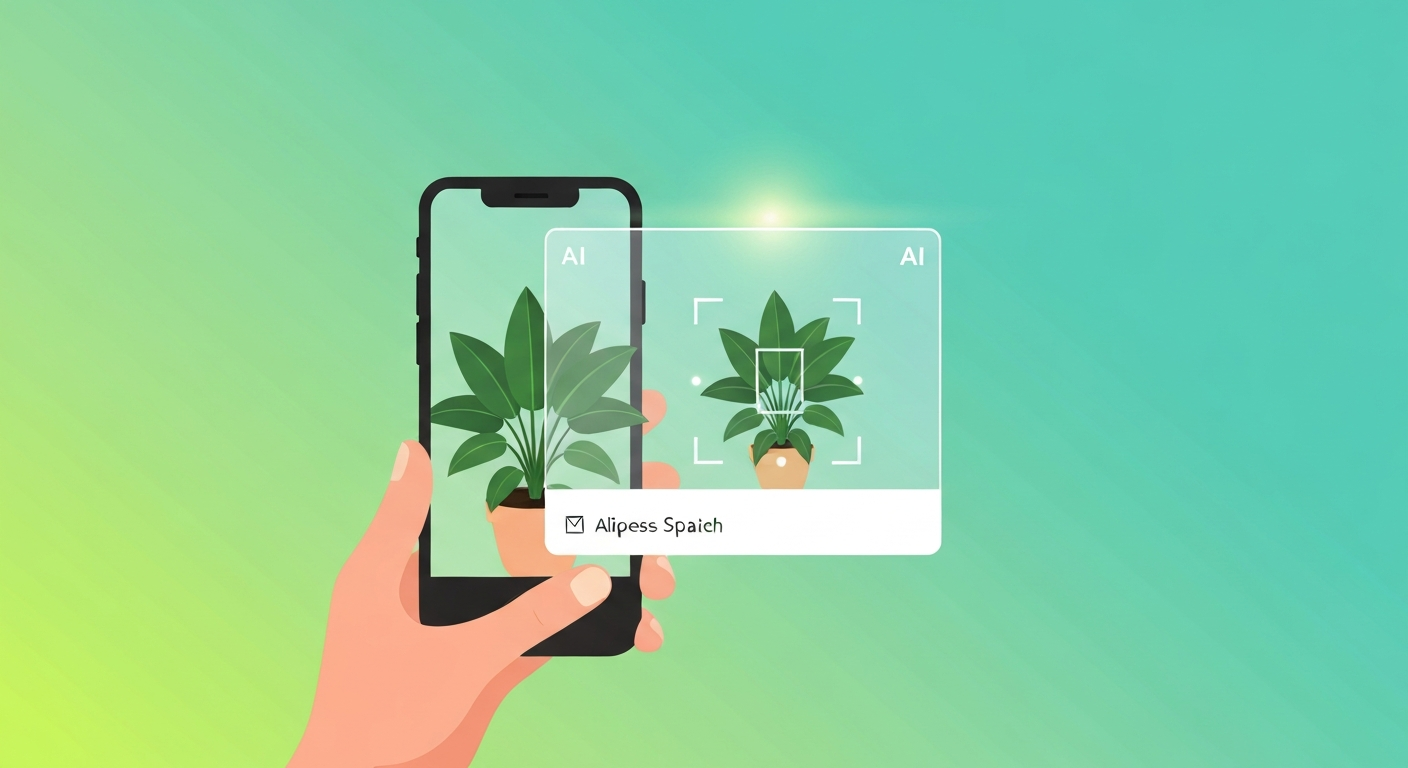
Spotted a plant you can't name? Your phone can probably identify it in seconds. Google's plant identifier — built into Google Lens — uses artificial intelligence to recognize flowers, trees, weeds and houseplants from a single photo. This guide explains how the technology actually works, how to use it on any device, how accurate it is, and the best alternatives when you need a second opinion.
What is the Google plant identifier?
There's no standalone app called "Google Plant Identifier" — the feature lives inside Google Lens, Google's visual search tool. Point your camera (or upload a photo) and Lens analyzes the image to tell you what you're looking at, whether that's a plant, an animal, a landmark, or a product. For gardeners and plant lovers, it effectively turns your phone into a pocket botanist: snap a leaf or flower, and Lens returns the most likely species along with care tips and related information.
How does Google Lens identify plants?
Under the hood, Google Lens combines artificial intelligence, deep learning and computer vision:
- Image capture. You take or upload a photo of the plant.
- Feature analysis. Lens examines leaf shape, flower patterns, color, texture and structure using models trained on millions of plant images.
- Database matching. It compares those features against a vast image index, ranking matches by visual similarity and context such as your location or the season.
- Results. Lens shows its best guesses with the species name, comparison photos, care information and links to reputable sources.
Because the processing happens on Google's servers, Lens needs an internet connection — it can't identify plants offline. And every time people use it, the models keep learning and gradually improve.
How to use Google's plant identifier
On Android: open the Google app and tap the Lens (camera) icon, or open a photo in Google Photos and tap the Lens button. Point at the plant or pick a saved photo, then review the matches.
On iPhone: install the Google app or use Google Photos, tap the Lens icon, take or choose a photo, and review the results.
On desktop: in Chrome, right-click any plant image and choose "Search image with Google," or upload a photo at the Google Lens website.
A handy trick: use the selection box to crop tightly around the plant so Lens ignores a busy background — this dramatically improves results.
How accurate is it?
For common plants, flowers and trees, Google Lens is impressively accurate — field tests suggest it places the correct species in the top three results around 90% of the time when the photo is clear and well lit. Accuracy drops for rare species, new hybrids, blurry images, and plants from regions with little online imagery. An open flower or distinctive leaf gives Lens far more to work with than bare bark or a closed bud. It's excellent for a confident first answer — but verify anything important, especially toxic lookalikes.
Tips for better plant identification
- Use good lighting — natural daylight, no harsh shadows or glare.
- Get close and fill the frame; crop out clutter with the selection tool.
- Capture distinctive features — flowers, leaf shape, berries — and shoot multiple angles.
- Avoid wet leaves; reflections confuse the model.
- Enable location for region-aware results, or add your area to the query.
- Cross-check the name against a university extension or the USDA Plant Database.
Troubleshooting common issues
- Unrelated results? Tighten the focus box so it only covers the plant.
- Image won't scan? Check your internet connection — Lens needs to be online.
- Low accuracy? Retake the photo in brighter light and get closer to a distinctive part.
- No Lens icon? Update the Google app or Google Photos.
Limitations to keep in mind
Google Lens uses pattern recognition, not botanical expertise — it can confuse similar-looking species and has misidentified dangerous plants as harmless lookalikes. It struggles with leafless trees, just-budding vines, and tightly grouped plants. For rare, protected or toxic species, always confirm with a field guide, an expert, or a dedicated botanical database.
Best alternatives to Google Lens
- PictureThis — a dedicated AI plant-ID app with care guides and health diagnosis.
- PlantNet — a research app identifying 20,000+ species and feeding biodiversity science.
- iNaturalist (Seek) — naturalist-community backed, great for wildlife and plants.
- Leafsnap — built with Columbia, Maryland and the Smithsonian, focused on leaf ID.
- Bing Visual Search — Microsoft's reverse-image tool with its own plant identifier.
For most everyday needs, though, Google Lens is the fastest, free, no-download option — and it's already on most phones.
Frequently asked questions
Is Google's plant identifier free? Yes — Google Lens is free via the Google app, Google Photos and Chrome, with no subscription.
Does Google Lens work without internet? No. It processes images on Google's servers, so it needs an active connection.
How accurate is it? Roughly 90% top-three accuracy for common, clearly photographed plants; lower for rare species and poor images.
Can it identify weeds and houseplants? Yes — weeds, houseplants, flowers and trees. Clear close-ups of leaves or flowers work best.
Find the right AI tool for any job
From plant ID to productivity, explore hands-on guides and reviews of the AI tools worth your time.