How to Build an AI Agent in 2026 (With or Without Code)
A plain-English beginner path to building an AI agent in 2026: no-code, an official SDK, or a coding agent, plus safety and official pricing. Checked 18 Nov 2026.

Affiliate disclosure: Some links on this page are affiliate links. Top10AI may earn a commission if you sign up through them, at no extra cost to you. Only the Base44 and Bubble “try” links marked as partner links are affiliate links; every other link is a plain link. See how we rate for the editorial policy.
You do not need a research lab, or even a coding background, to build a simple AI agent in 2026. You need a clear job for the agent, a way for it to take actions (not just chat), and a limit on what it is allowed to do without you. This guide is a practical beginner path: what an agent actually is, then three routes to build one — a no-code builder, a framework or SDK, or a coding agent that writes the project for you — plus the safety basics and official pricing, dated.
This is a how-to guide, checked 18 Nov 2026. It is not a ranking, and it is not a definition explainer (for that, see what an AI agent is). Plan details come from each vendor’s own documentation or pricing page on that date. Top10AI did not trial these tools for this article and gives no badges or star ratings here. We also do not invent build times, costs or success rates. If a number is not on an official page we checked, it is not in this article.
The short version
- Write down the job in one sentence, the tools the agent may use, and what it must not do without your approval.
- Pick one route. If you have never written code, start with a no-code builder such as Base44 (which has in-app AI agents) or Bubble (a no-code app you can connect to a model). If you write Python or TypeScript, use an official SDK. If you already use a coding agent, you can ask it to scaffold the project — then you still have to review it.
- Give the agent the smallest set of tools that can finish the job, and keep a human sign-off on anything that sends a message, changes a record, spends money or talks to customers.
- Test with dummy data before you connect a live inbox, payment account or customer list.
- Check official pricing on the vendor’s page before you scale usage. Agents that call tools use more model usage than a single chat reply. We do not estimate your bill.
What you’re actually building
An AI agent is software that is given a goal, can plan steps, and can use tools to take actions until the job is done or it needs to stop. That is the difference from a chatbot, which mainly answers in conversation. OpenAI’s agent docs describe agents as systems that “can plan and complete tasks using tools, work with other agents, and maintain context across steps.” Anthropic’s Agent SDK docs describe an agent as “an application that completes a task by planning its own steps and calling tools.” For a fuller plain-English definition, and how this differs from a fixed automation, read our guide to what an AI agent is. This page is about how to build one.
Whatever route you pick, the same four parts show up:
- A goal. One job you can describe in a sentence, such as “triage new support emails and draft a reply, but do not send it.” Vague goals (“be helpful,” “run my business”) are a poor first project.
- Tools. The actions the agent is allowed to take: look something up, create or update a record, run a command, send a message, call an API. If it cannot use a tool, it can only talk.
- Memory. Enough context to finish the current job, and, if you turn it on, facts it should remember later. Official SDKs and no-code builders both treat this as a setting you choose, not something that happens automatically in a useful way unless you configure it.
- A loop. The agent plans, uses a tool, checks the result, and either takes the next step or stops. Sensitive steps should pause for a person. OpenAI’s Agents SDK has a built-in human-in-the-loop flow that can pause until you approve or reject a tool call. Anthropic’s Agent SDK has permission modes and rules that decide which tools run automatically and which need approval.
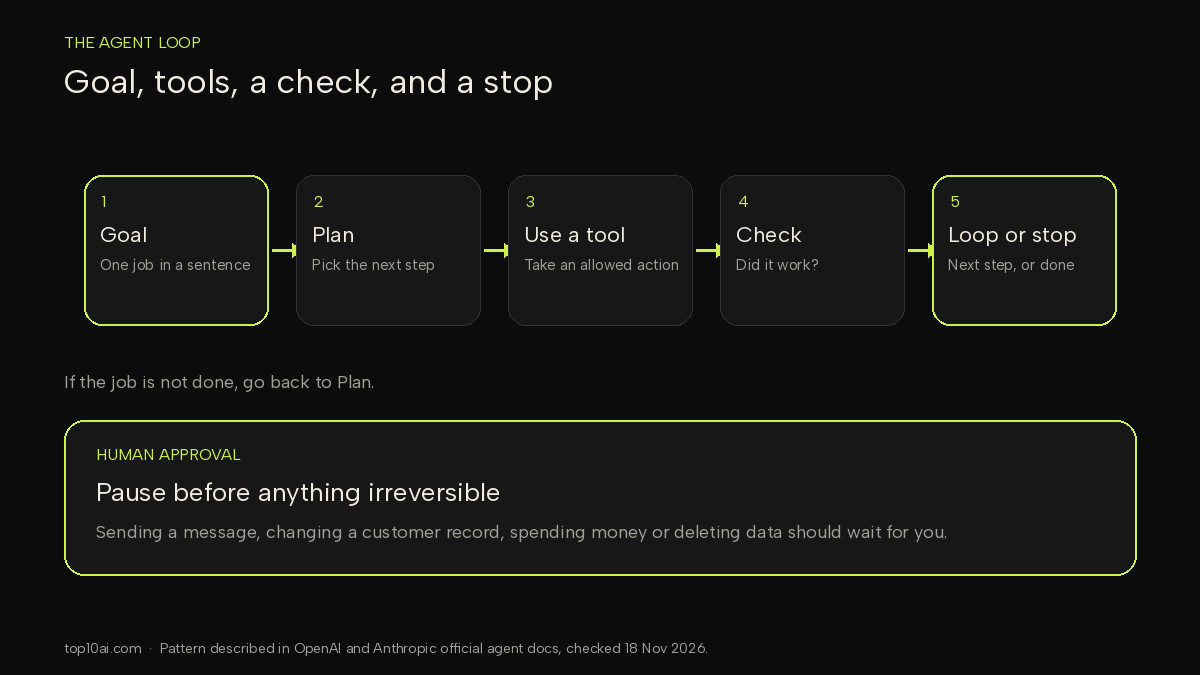
Start smaller than you think. A first agent that files a form, looks up a status, or drafts a message you still send yourself is a better test than a “personal assistant” that has access to your email, calendar and bank account on day one. For the wider debate about how far autonomy should go, see our essay on autonomous agents.
Pick your route: no-code vs framework vs coding agent
There is no single “best” way to build an agent. The useful question is which route matches how you like to work. This table is a starting point, not a scorecard.
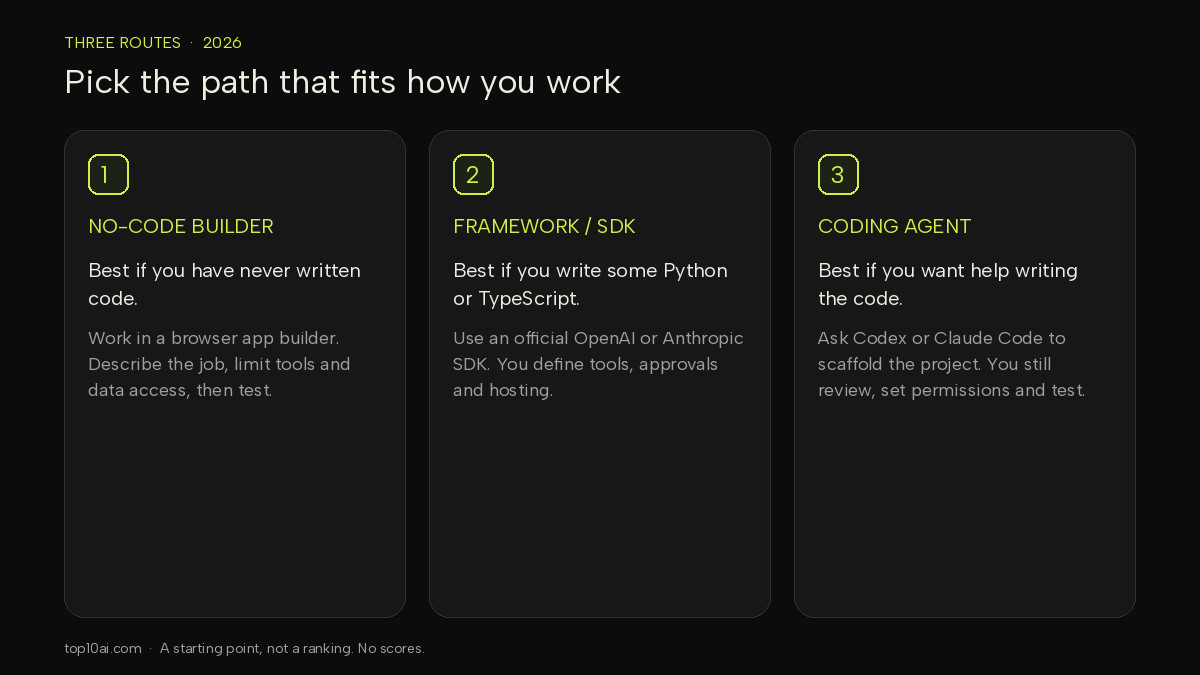
| Route | Best if | What you work in | You still have to |
|---|---|---|---|
| No-code builder | You have never written code, or you want hosting, logins and a database included | A browser app builder, such as Base44 or Bubble | Describe the job, limit tools and data access, and test before anything goes live |
| Framework or SDK | You are comfortable with some Python or TypeScript and want the loop in your own app | Official docs: OpenAI Agents SDK or Claude Agent SDK | Install the SDK, define tools, add approvals, and host the app yourself |
| Coding agent | You already use an AI coding tool, or you want help writing the code | A coding agent such as OpenAI Codex or Anthropic’s Claude Code | Review the code, set permissions, and test. The coding agent is not a substitute for those steps |
If you want a deeper look at no-code app builders generally, see our AI app builder guide and how to vibe code. Those pages are about building apps. This page stays on building an agent.
Route 1: build an agent app without code
This is the right first route for most beginners. You stay in the browser. The builder provides the app around the agent — records, logins, hosting — and you describe the job in plain language. Two established options are Base44 and Bubble. They are not the same product, so it helps to be precise.
Base44: an in-app AI agent
Base44’s documentation has a dedicated guide to setting up an AI agent for your app. It says agents “turn simple chats into actions in your Base44 app”: they can update records, trigger workflows and use tools, rather than only replying with text. Memory is on by default for new agents. You can also connect an agent to WhatsApp, Telegram or LINE.
A practical first build, following that official setup guide:
- Name one job and the outcome you can check. Example: “When a new request arrives, classify it, write a short summary, and create a record. Do not email the customer.”
- Create the agent. In the app editor, go to Dashboard, then Agents. Base44 says you can pick a suggested template or click Create from scratch and describe what you want in the AI chat.
- Write the guidelines. In the agent’s Guidelines tab, say what the agent is for, how it should sound, and where it must stop. Keep the first version narrow.
- Turn on only the tools it needs. The Tools section controls what data and tools the agent can use. Prefer read access plus a single “create record” action over a blanket “update or delete anything” permission.
- Decide what it may change alone. Base44’s agent-builder page tells you to allow create, update or delete per data table, and to rely on data permissions for everything else. Anything that sends a message or changes a customer’s record should wait for you until you have watched it work on test data.
- Test on work you already understand. Give it last week’s examples in the preview, compare its decisions with yours, and fix mistakes in plain language. Use fake names and dummy records.
- Publish only when the test looks right. Base44 says you can share a link or connect a messaging channel once the agent is live. Do that after the test, not before.
Base44’s agent docs also note that chatting with an agent uses integration credits, and that “pricing starts at around 3 integration credits per message with the default model and then varies based on the model you select and the length of the response.” That “around 3” figure is Base44’s own wording, checked 18 Nov 2026, not a measurement we ran. Plan limits are on the pricing page, covered below.
Bubble: a no-code app you can connect to a model
Bubble is a no-code platform with a visual editor. Its manual describes the Bubble AI Agent as “an assistant in the Bubble editor that helps you generate, edit, and troubleshoot apps.” In other words, that Agent is a builder sitting next to you, not the user-facing agent your customers talk to. That distinction matters.
To ship an agent-like feature in a Bubble app — a chatbot that can take actions in your workflows — Bubble’s manual has a guide to connecting a Bubble app to AI models such as ChatGPT and Claude with the API Connector. It lists conversational interfaces, text generation, classification, search and decision support as things those integrations can add. You still design the pages, the database and the workflows, including any “ask a person first” step, in Bubble itself.
A practical first build on this path:
- Create a Bubble app and describe a small prototype to the in-editor Agent, or start from a blank page if you prefer the visual editor.
- Add the records the agent will need (for example, Requests, with a status field) and a simple page where you can review them.
- Connect your chosen model through the API Connector, following Bubble’s official guide. Keep the API key in Bubble’s credential settings, not in a visible text element.
- Build a workflow: receive a message or a new record, call the model, write the result back, and stop before any irreversible action (send, refund, delete).
- Test with two accounts and dummy data. Then add the send or update step, still behind a button you click yourself, until you trust the drafts.
If you want a broader comparison of no-code builders, see our AI app builder guide and Base44 vs Lovable. For getting started by describing an app in plain language, see how to vibe code.
Route 2: with a framework or SDK
Use this route if you want the agent loop inside your own application. The two official starting points we use in this guide are OpenAI’s Agents SDK and Anthropic’s Claude Agent SDK. Framework and vendor documentation links below are plain links, not partner links.
OpenAI Agents SDK
The OpenAI Agents SDK (Python package openai-agents; there is also a TypeScript SDK) is documented as a small set of primitives: agents (a model with instructions and tools), handoffs so one agent can delegate to another, guardrails for checking inputs and outputs, sessions for memory across turns, and a built-in loop that continues until the task is complete. It also documents sandbox agents (specialists inside isolated workspaces) and a human-in-the-loop flow that pauses for approval on sensitive tool calls.
The official Python hello-world, from the SDK docs, looks like this:
pip install openai-agents

from agents import Agent, Runner

agent = Agent(name="Assistant", instructions="You are a helpful assistant")

result = Runner.run_sync(agent, "Write a haiku about recursion in programming.")
print(result.final_output)
You need an OpenAI API key set in your environment (the docs use the OPENAI_API_KEY variable). After the hello-world runs, the official path is: add tools, decide how you store session state, mark sensitive tools with needs_approval=True so a person can accept or reject them, and only then connect anything that can change real data. See the SDK’s quickstart and human-in-the-loop pages. Usage is billed on the OpenAI API pricing page, not as a flat “agent fee” we can estimate for you.
Claude Agent SDK
Anthropic’s Agent SDK overview describes the SDK as a way to “build production AI agents with Claude Code as a library.” It gives you the same tools, agent loop and context management that power Claude Code, programmable in Python (claude-agent-sdk) or TypeScript (@anthropic-ai/claude-agent-sdk). Built-in tools can read, write and edit files, run commands and search the web. The SDK also documents hooks, subagents, MCP connections, sessions, and a permission system that controls which tools run automatically and which need approval.
The official install commands are:
pip install claude-agent-sdk

# or, in a TypeScript project:
npm install @anthropic-ai/claude-agent-sdk
Follow Anthropic’s quickstart to set an API key and run a first agent. A note from the same overview is easy to miss: unless Anthropic has already approved it, third-party products built on the Agent SDK should use API key authentication, not a claude.ai login. Permissions are configured with modes and allow, deny or ask rules; the permissions guide is the page to read before you let an agent run commands on your machine. If you need the same loop from a language that is not Python or TypeScript, the overview says you can run the Claude Code CLI as a subprocess with the -p flag and --output-format json.
Do not start this route by pasting a secret into a chat or by turning off every permission so the demo “just works.” Get the hello-world running, add one tool, add one approval, then connect a real system.
Route 3: let a coding agent build it
A coding agent is an AI tool that can write and edit code for you, usually in a terminal, an editor, or a cloud workspace. You can ask it to scaffold an agent app — for example, an OpenAI Agents SDK project or a Claude Agent SDK project — instead of typing every file yourself. You are still the person who decides the goal, the tools, the permissions and whether the result is safe to run.
Two widely used options are OpenAI’s Codex and Anthropic’s Claude Code. We compared where each runs, which plans include it, and how each handles permissions in Codex vs Claude Code. For a wider set of AI coding tools, see best AI for coding.
On official pages checked 18 Nov 2026:
- OpenAI’s Codex page says “Codex is included in your ChatGPT plan,” and lists Plus at $20, Pro at $100, and Business at $20 (Business is described as being for two or more seats, billed annually).
- Anthropic’s Claude pricing page lists Claude Code on the Pro plan ($20 a month, or $17 a month with annual billing), and on Max ($100) and Ultra ($200). The same feature table shows Claude Code as not included on the Free plan.
A sensible way to use a coding agent for this job:
- Give it a tight brief: the official SDK you want, the single tool the first version may use, and the rule that irreversible actions need approval.
- Let it create the project in a folder that is not your main work folder, and review the files before you run them.
- Run it first with dummy data and with network or folder access limited, then widen access only if you need to.
- Keep the API keys in environment variables, not in the repository and not in the prompt log you might later share.
This route is moving quickly. On 17 Nov 2026, Cognition announced Devin Bots, which it describes as persistent agents “with [their] own memory and tools” that can lead multiple Devin coding sessions in parallel and “bring you only the decisions that need your judgment.” That is a vendor announcement about a coding-agent product, not a beginner first step, and we have not independently verified Cognition’s own project results. If you try any coding agent on a real repo, the safety section below still applies.
Keep it safe: sandboxes, permissions and human sign-off
An agent that can use tools can also do damage: send the wrong email, delete a record, leak a key, or run a command you did not mean to allow. Safety is not a later upgrade. It is part of the first version.
Three habits cover most beginner projects:
- Sandbox the code the agent runs. On 17 Nov 2026, Simon Willison described an external sandbox pattern, developed with Prime Radiant: the agent itself lives outside a dedicated sandbox, and the code it wants to execute runs inside that sandbox. The implementations he points to share a localhost API, and can add an HTTP/HTTPS allow-list so you control which hosts the code may reach, plus a credential-replacement step so a secret does not have to be given to the agent. OpenAI’s Agents SDK also documents sandbox agents that run in isolated workspaces. You do not have to use any one implementation, but you should not run unreviewed agent code with the same access you have as a logged-in user on your laptop.
- Limit permissions. Give the agent the smallest set of tools and the narrowest data access that can finish the job. In a no-code builder, that means per-table create/update/delete and row-level rules. In the Claude Agent SDK, it means permission modes and allow, deny or ask rules rather than a blanket bypass. In the OpenAI Agents SDK, it means marking sensitive tools so they need approval. Do not put API keys, passwords or tokens in prompts, source files that might be committed, or anywhere an app visitor could read them.
- Require a human sign-off for irreversible steps. Sending a message, charging a card, changing a customer’s record, deploying code, or deleting data should pause for you until you have watched the agent handle test cases. OpenAI’s human-in-the-loop docs are built around this pause-and-resume idea. A good first rule is: the agent may draft and file; it may not send or pay until you click approve.
One more caution: social posts sometimes circulate dollar-per-hour or “success rate” figures for running sandboxes or agents. We have not included those figures, because we could not verify them at a primary source. If a cost or rate matters to you, use the vendor’s official pricing page, dated, and your own usage dashboard.
What it costs
Costs depend on the route, the plan, and how much the agent is used. Agents that call tools repeatedly will use more model usage than a single chat reply. The figures below are from official pages, checked 18 Nov 2026 (Asia/Nicosia). They can change. We are not estimating what you will pay, and we are not converting annual prices into our own monthly totals beyond what the page itself states.
No-code builders
According to Base44’s pricing page (prices shown as billed annually, plus a FAQ that says annual billing saves 20%):
- Free is $0, with 25 message credits a month, 100 integration credits a month, up to 5 apps, and core features including authentication, database and analytics.
- Paid plans listed on the page are Starter at $16/month, billed annually (100 message credits and 2,000 integration credits a month), Builder at $40/month, billed annually (250 and 10,000), Pro at $80/month, billed annually (500 and 20,000), and Elite at $160/month, billed annually (1,200 message credits and 50,000 integration credits). Enterprise is custom.
- As noted above, Base44’s agent docs say chatting with an agent uses integration credits, starting at around 3 per message with the default model.
According to Bubble’s official pricing and plans manual and AI credits page (the credits page says that if it ever differs from bubble.io/pricing, the pricing page wins):
- There is a Free plan. It includes 500 AI credits a month. Those credits cover Bubble AI features such as the in-editor Bubble AI Agent and image generation. App generation, and editing in the visual editor, are listed as not using AI credits. Running a live app uses workload units, not AI credits.
- Paid web-only prices in the manual, listed per month, are Starter $32 billed annually or $39 billed monthly, Growth $119 / $134, and Team $349 / $399. Mobile-only and web-plus-mobile prices are higher; check the table if you need a native app. Bubble also documents a 14-day Starter trial for new apps, started from Settings, with a $1 card pre-authorization that it describes as a temporary hold.
- Connecting ChatGPT or Claude through the API Connector is billed by that provider, on top of your Bubble plan.
Frameworks and coding agents
- OpenAI API (used by the Agents SDK): the official API pricing page lists, among other models, short-context standard rates per 1 million tokens of gpt-6.2-sol at $2 input / $10 output, gpt-6.2-astra at $8 / $40, and gpt-6-luna at $0.10 / $0.50. Cached input and long-context rates differ; see the page.
- Codex, from the Codex page: included with ChatGPT plans, with Plus listed at $20, Pro at $100, and Business at $20 (2+ seats, billed annually).
- Claude API: Anthropic’s API pricing lists, among other models, Claude Sonnet 5.5 at $2 / $10 per million input/output tokens and Claude Haiku 5.5 at $0.10 / $0.50 for prompts up to 100,000 tokens (higher rates apply above that). Fable 5.2 is listed at $8 / $40.
- Claude Code, from claude.com/pricing: included from Pro ($20 monthly, or $17 monthly with annual billing) upward, not on the Free plan. Max is $100 a month; Ultra is $200 a month. Prices are shown before tax.
Confirm the live number on the official page before you buy. Promotions, taxes and usage overages are not included here.
FAQ
Can I build one for free?
You can start for free. Base44’s Free plan is $0, with 25 message credits and 100 integration credits a month (checked 18 Nov 2026). Bubble’s Free plan includes 500 AI credits a month for in-editor AI features. Official SDKs are free to install, but running them uses the provider’s API, which is billed on official token prices, and Claude Code is not listed on Anthropic’s Free plan. Free plans have limits, and an agent that calls tools will use credits or tokens faster than a one-off chat.
Do I need to code?
No, not for a first agent. A no-code builder such as Base44 can set up an in-app agent from a description, and Bubble can host an app that you connect to a model through the API Connector. You will still need to describe the job clearly, limit what the agent may change, and test it. If you later want the loop inside your own codebase, Route 2 (an official SDK) does require some Python or TypeScript, or a coding agent plus your review.
What is the difference between an AI agent and a chatbot?
A chatbot mainly replies in conversation. An AI agent is given a goal, can plan steps, and can use tools to take actions — for example creating a record, running a command, or calling an API — until the job is done or it needs to stop. That is the distinction drawn in OpenAI’s and Anthropic’s agent documentation, and in our plain-English guide to what an AI agent is. Many products mix the two: the interface looks like a chat, but the useful part is the tools behind it.
Related reading
- What is an AI agent?
- Autonomous AI agents
- AI app builders for non-coders
- Base44 vs Lovable
- How to vibe code
- Codex vs Claude Code
- Best AI for coding
Sources
- All sources accessed 18 Nov 2026 (Asia/Nicosia).
- Base44: Setting up an AI agent for your app, Base44 AI agent builder and Base44 pricing
- Bubble Manual: Bubble AI Agent, Connect to AI models, AI credits, Pricing and plans and bubble.io/pricing
- OpenAI Agents SDK, Quickstart, Human-in-the-loop, OpenAI Agents overview, OpenAI API pricing and Codex
- Claude Agent SDK overview, Quickstart, Permissions, Claude pricing and Claude API pricing
- Cognition: Introducing Devin Bots (17 Nov 2026)
- Simon Willison: External sandboxes for coding agents (17 Nov 2026)
Find the Right AI Tool for You
Not sure which tool fits your workflow? Take our 30-second finder quiz and get a recommendation.